Radio setup
Plug in. Install. Pair.
Set up a LoRa radio for Maps right here in your browser. Pick your radio, install the firmware over USB in one click, then pair it with your phone. First install or update, any computer.
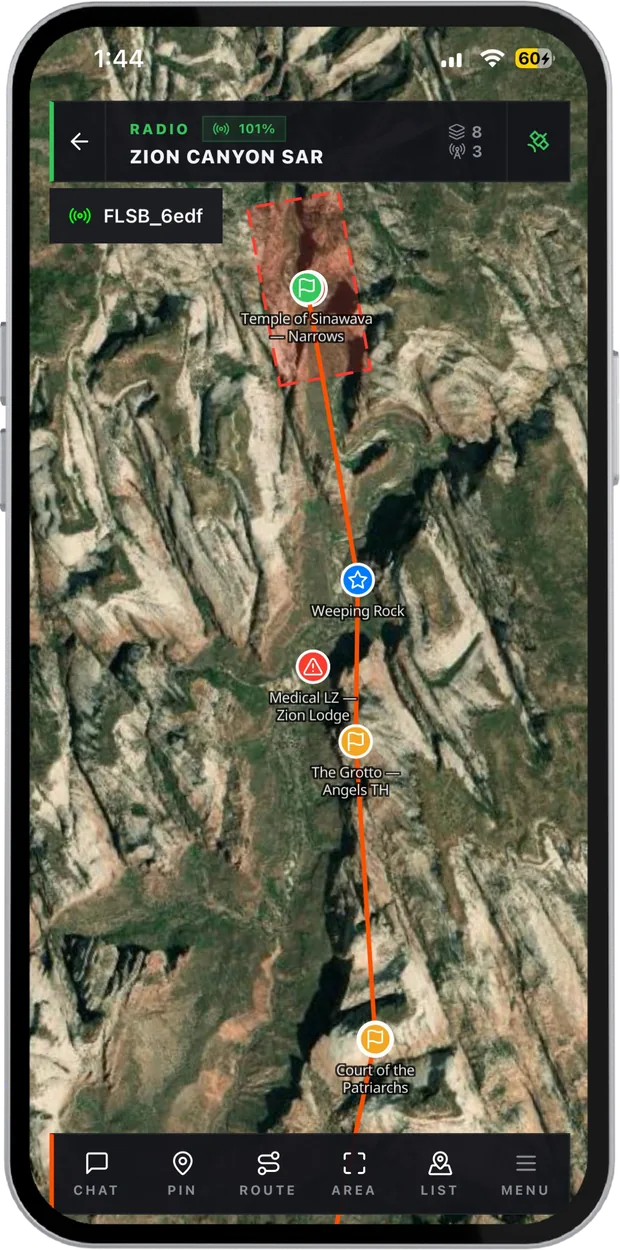
The setup tool
Which radio do you have?
Pick it below and the steps for that radio appear. Keep the USB cable plugged in until it says done.
Step 1 · Pick your radio
Loading radios…
Step 2 · Install
Pick your radio above and the install steps appear here.
FAQ
Questions, answered.
01Which browsers work?
One-click install works in Chrome and Edge on Windows, macOS, Linux and ChromeOS, because they can talk to USB devices. In Safari or Firefox, download the file and drag it onto the radio's drive instead: same result.
02Which radios are supported?
More than 30 nRF52 radios from RAK, Seeed, LilyGo, Heltec, Ikoka, ThinkNode, SparkFun and others. Pick your maker above to see them all.
03Will I lose my settings?
Updating keeps them. Erasing the radio deletes everything, so only do that if an install went wrong or the radio came with other firmware.
04Is it free?
Yes. The firmware and the setup tool are free, and so are groups, chat and live location over the mesh in Maps.
05Can I update without a cable?
Yes, if the radio already runs Maps or MeshCore firmware. In Maps, open Radio and start a wireless update, then follow the steps in the free nRF Connect app. It takes about a minute.
06My radio doesn't show up. What now?
Try another cable (some only charge), another USB port, and put the radio in setup mode again. One-click install needs Chrome or Edge on a computer; any browser can download the file.
07What if the install fails halfway?
Nothing breaks for good. Put the radio back in setup mode (on most radios, double-tap reset) and install again.